PRACTICE · AI VIDEO · OCTOBER 29, 2026
How to replace a person in a video with AI: a beginner’s guide
Film yourself on a phone and turn the clip into a scene with a Cossack, knight or your own character. A step-by-step guide with free options and video examples.
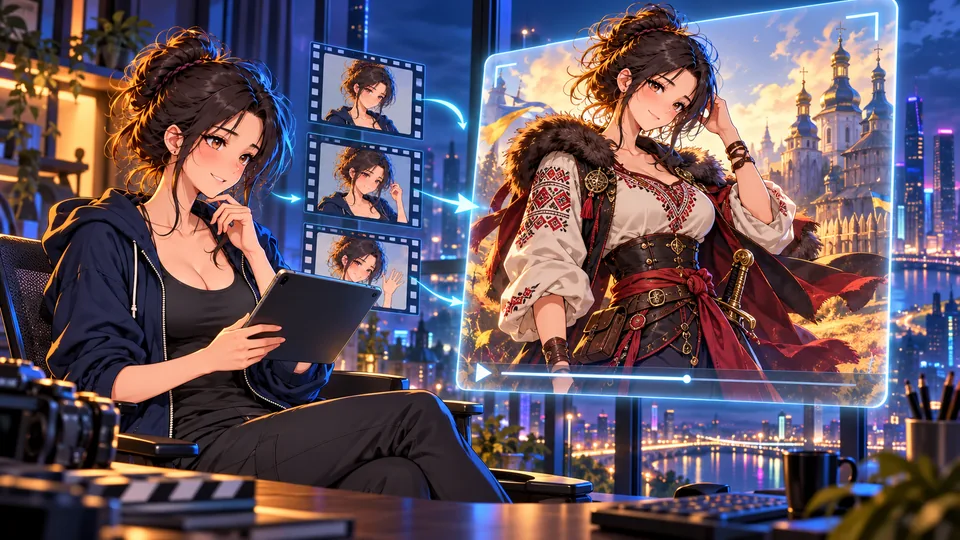
Film yourself on a phone, take a step and wave. In the result, a Cossack, knight or character from your own story performs those movements. Your first experiment does not require an expensive camera, a costume or editing skills.
There are two related approaches. Character replacement changes a person in an existing video. Motion transfer takes movement from a video and animates a separate character image. With the second approach, the background may come from the image rather than your footage.
This guide is based on official service descriptions and video tutorials, not on our own generation tests. Terms were checked on October 29, 2026; check current prices and availability in your account before generating.
Which approach should you choose
Want to start without paying? Try Viggle Mix with your own video and a character image. Want to change a person in an existing scene? Try Pika Swap Anything or Runway Edit Studio. Want to animate a character image with your performance? Try Viggle Mix or Runway Act-Two.
What to prepare for your first attempt
- Record 5–10 seconds on your phone: one person, good light, a simple background and a steady camera. Start with a single uncut shot.
- Move at a moderate pace. Keep hands and feet in frame when you need them. For a talking character, frame yourself from the waist up and keep your face visible.
- Prepare a character image. Match a full-body video with a full-body character image, or use a similar framing for a portrait. Pika can also use a text description instead of an image.
- If you do not have a character image, ask an image generator for a fictional Cossack, knight or your own original heroine. Save the result as a JPG or PNG.
Option 1: start for free with Viggle Mix
Viggle Mix combines a character image with movement from a video. The service also describes placing a character into an existing scene. It is useful for dances, gestures and short stories, although hands, faces and backgrounds may not always be reproduced accurately.
- Sign up and open Mix or Swap single character.
- Upload your own video or choose a motion from the library.
- Add the character image. For a full-body video, use an image showing the whole body too.
- Choose the available settings and press Generate. Review and download the result. Button names may change after an update.
According to Viggle’s pricing page, the free plan offers five videos per day and one generation at a time. Free exports may carry a watermark; individual models and modes have their own limits. This does not mean every tool or long video is free.
Option 2: replace a person in your clip with Pika
Pika Swap Anything edits an existing clip: use a description or reference image to change a character, outfit, objects or setting. The service attempts to retain the action and timing, but background details can change during generation.
- Sign in to Pika and open Swap Anything.
- Upload your own short clip.
- Describe whom to replace and what they should become. If a specific appearance matters, add a character reference image.
- Check the credit cost before starting and press Generate. Compare the result with the original clip.
Pika has a free account, but its help page says the current Free plan does not include a monthly credit allowance. One-time credit purchases may be available. Do not assume a free account means free generations: check the cost before pressing the button.
Ready-to-use prompt: a Cossack
Copy the prompt below. It asks to replace the person with a Cossack while keeping the motion, camera and background. Replace the character description with your own if needed.
Replace the person with a realistic Ukrainian Cossack in traditional historical clothing. Keep the original body movements, camera angle, lighting and background. Photorealistic cinematic video.
Ready-to-use prompt: a fantasy heroine
This example asks for a fantasy heroine while preserving the motion. To use a specific image of Mia, add that image as a reference.
Replace the person with the character in the reference image, wearing a detailed fantasy adventurer outfit. Keep the original movements and camera position. Match the scene lighting and preserve the background.
Option 3: more control with Runway
Runway Edit Studio uses Aleph 2.0 to edit existing videos and supports character replacement. Open Apps → Video → Edit Studio, upload your clip and describe the change. For a more specific look, edit a keyframe and let the model apply that change to the rest of the video.
Runway’s documentation lists Aleph 2.0 at 28 credits per second. Five seconds cost 140 credits for the video generation alone; creating or editing a keyframe can cost extra. The free plan includes 125 one-time credits, so it is not enough for this five-second example.
Runway Edit Studio guide ↗ · Runway pricing ↗
For a speaking character there is a separate tool, Act-Two: upload a performance video and a character image to transfer facial expressions and gestures. This animates the character, so the original background will not necessarily remain. Runway says it requires Standard or higher.
YouTube examples: see how it works
These videos are from other creators and the service, not our own generations. Interfaces change; older videos may show different buttons and free limits from those available today.
Why the result may look strange
Distorted fingers or a changing face can occur when hands leave the frame, the subject turns away, or hair or an object covers the face. Try a shorter clip, slower movement and a character image framed similarly to the first video frame.
A sword in hand, a hug or interaction with furniture is harder than a simple walk. Test the character without props first, then add them. For a longer story, generate several short scenes and join them in an editor.
Sound and voice depend on the selected mode. Check whether the service retained the original audio; if needed, add your recording during editing. Review lip sync separately too.
Your footage, other people’s faces and historical characters
For a first attempt, film yourself or obtain the person’s permission to use their video and likeness. Do not present a fictional clip as genuine footage of a historical event. If you publish footage from a film or someone else’s recording, check the rights to the video, music and character.
A simple plan for your first video
Film yourself by a window: smile and wave. Create an image of a fictional Cossack woman or your own character. Upload the image and video to Viggle Mix, check the free limit and generate a short test. If you want to keep your room and change the person in the shot, try Pika with the same video and a description.
Do not judge the result by its first frame alone: watch the full clip and check the face, hands, clothing, background and sound. Then decide whether to try again.
Keep exploring
How to create a cartoon or film with AI ↗ · How to generate video on your own PC ↗ · Telegram community ↗
Discussion
Share a thought or ask about the article. Your nickname and comment will be public.
Sign in with email
Get a one-time code. No password needed.
The code expires in 10 minutes. Signing in does not subscribe you to the newsletter. Data use.
Or sign in with ChatGPT ↗Loading comments…